Project Genie lets you create, explore, and remix interactive worlds with just text—or text plus images. Want to travel to a moon made of cheese or dive into an ocean full of brand-new creatures? With Project Genie you can do that in real time.
Quick note: it’s currently available to Google AI Ultra subscribers in the United States who are 18 or older, with plans to expand.
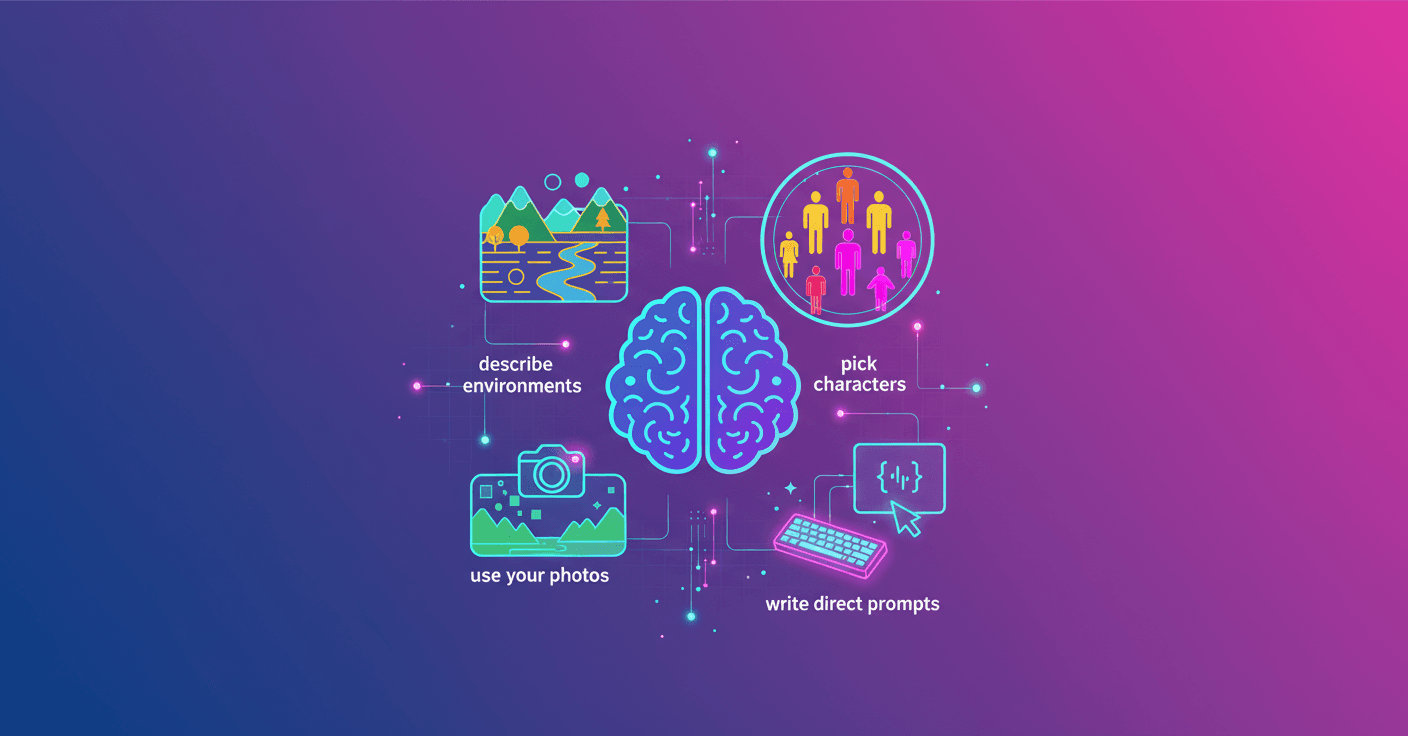
1. Describe the environment in detail
Start by writing what kind of environment you want. A dense forest or a snowy one? A lively city or an abandoned town? The moon, but made of cheese? Be specific about structures or objects you want to see: hanging bridges, sunken ships, floating marketplaces.
Add the weather and the overall mood: cold wind, thick fog, warm sunset tones. Also pick the visual style: photorealistic, cartoon, or video game aesthetic. The more specific you are, the closer Genie’s first version will be to what you imagine.
2. Choose and define a character
Your character is your vehicle for exploring. It can be anything: a tiny blue giraffe, a wheeled robot, or a giant pixelated doll. Describe how it moves: does it fly, roll, run backwards? Does it leave a trail of sparks or grow little plants when it steps?
Think about scale relative to the environment and sensory details that affect navigation: jump height, speed, whether it needs air or can breathe underwater. Those little details keep the experience coherent and more fun.
3. Use your own images to kickstart worlds
If you have a photo or sketch, upload it as a starting point. It helps if the character is centered and the background has enough information to define the environment. Then add textual details: do you want everything dark and stormy or like it’s made of jelly?
This speeds up creation and helps your world retain visual traits from the original image. If the photo is a flat landscape, Genie will transform it into a navigable world. Don’t like something? Tweak the prompt and preview again.
4. Use direct language, actions, and sensations
Short, action-oriented commands work best. Example: underwater scene with colorful reefs. Add the character: character: a graceful goldfish that swims with poise.
Include sensory details: sounds, textures, smells if you want atmosphere — for example warm water with the scent of old coral. If you need help fine-tuning lines, use the Gemini app to rewrite or improve prompts.
Practical tip: write separate, declarative sentences. It’s easier for Genie to process them and adjust in real time.
Preview and perspective: try first, explore later
Before you dive in, Project Genie shows a preview of the world and the character using Nano Banana Pro. There you can check the aesthetic and how navigation will look. If something feels off, edit the prompt and refine in real time.
You can switch between first-person exploration (seeing through the character’s eyes) and third-person (seeing the character from above). Do you want to feel like you’re swimming, or watch your creation move like a toy? Changing perspective changes the whole experience.
Quick ideas to get started
- Night world with fireflies and floating ruins. Character: a fox that emits tiny lights.
- Retro-futuristic city full of holographic screens. Character: a delivery rider on a hoverboard.
- Crystal forest where everything makes sound when you walk. Character: a girl who leaves musical footprints.
Try, tweak, and remix. The most interesting worlds come from quick iterations and embracing happy accidents.
Project Genie is a tool for playing and prototyping ideas that used to exist only in your imagination. You don’t need to be an artist or a programmer: with clear descriptions, a reference image, and a willingness to experiment, you can create memorable experiences.