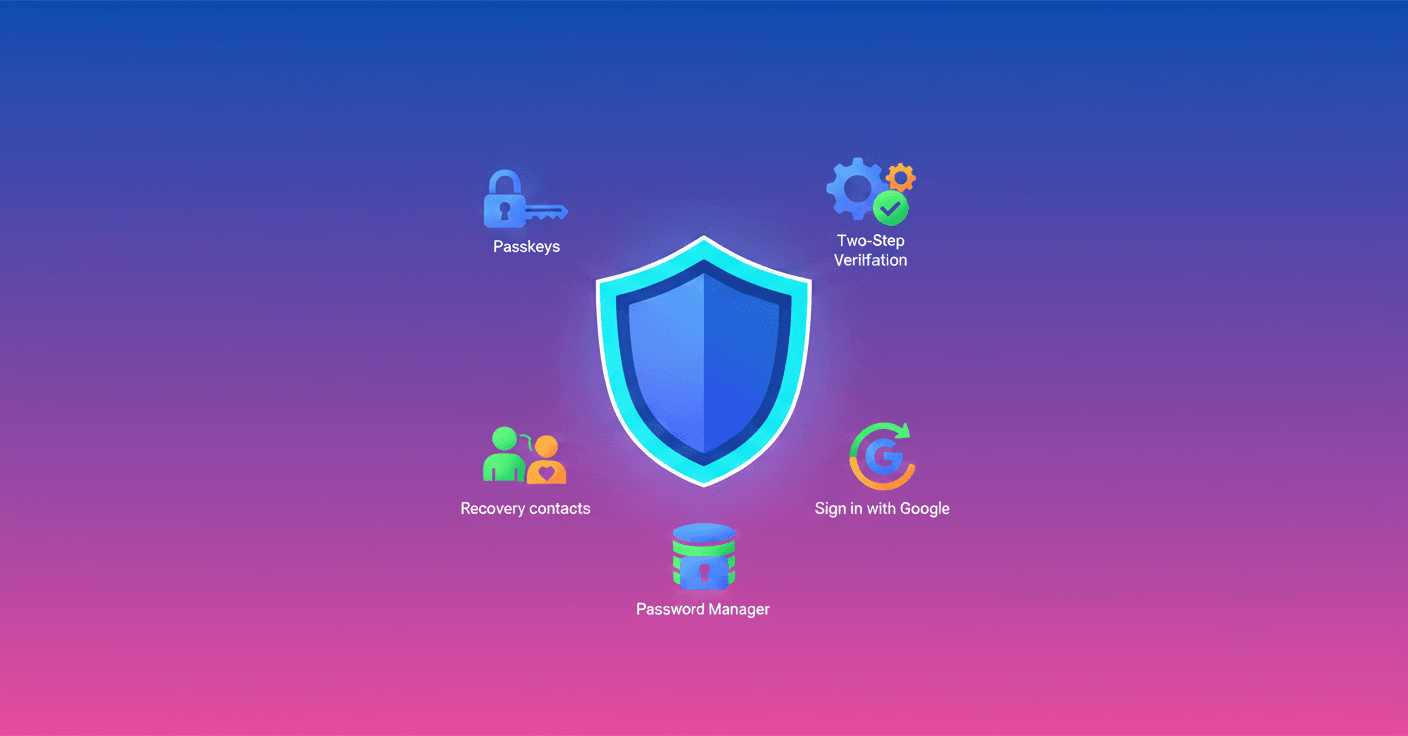
Your digital life goes through many accounts: email, family photos, shopping and streaming. What if I told you there are simple settings that make that life much safer without complicating things?
Five useful Google tools to protect your accounts
Here are five practical features Google recommends to keep access to your account simpler and more secure. You don't need to be an expert: with a few minutes you can strengthen your security.
1. Passkeys: sign in faster and without a password
Passkeys are an alternative to passwords and SMS codes. They work with your device's screen lock: fingerprint, face, or PIN. The advantage? Signing in becomes as easy as unlocking your phone and much harder to steal.
Important: biometric data (fingerprint or face) stays on your device and does not get shared with Google.
How to try it: create a passkey at myaccount.google.
2. Turn on two-step verification (2SV)
Even if you use passkeys, two-step verification adds an extra layer. If someone tries to impersonate you and claims to have lost their passkey, 2SV prevents automatic access to your account.
How to try it: set up 2-Step Verification on your Google account.
3. Recovery contacts: trusted help when you lose access
Lost your phone and need to get into your account? Recovery contacts let you choose up to 10 people who can confirm it's you. They will get a message or email to help you regain access, without having access to your account or your data.
How to try it: set up your recovery contacts.
4. "Sign in with Google": fewer accounts, more control
Instead of creating a new username and password on every app or store, use "Sign in with Google." That reduces the number of passwords scattered across the web and limits risk if another platform suffers a breach.
You decide which connections to keep and can review or revoke app access whenever you want.
How to try it: learn how to use Sign in with Google.
5. Google Password Manager: create and save passwords and passkeys
If a site doesn’t support Sign in with Google, Password Manager creates strong passwords and saves them for you. It can also sync passkeys and autofill them when you need them, so you avoid reusing the same password across services.
How to try it: manage your saved passwords from your Google account.
How to combine them without losing your mind
- Enable passkeys where you can and keep 2SV as a backup.
- Use Password Manager so you don’t have to remember weak passwords.
- Add a few trusted recovery contacts, in case you lose the device.
- Periodically review connected apps and remove the ones you no longer use.
- Keep your system and apps updated: many attacks exploit outdated software.
A few minutes today can save you hours (or headaches) tomorrow. This isn’t paranoia; it’s about controlling your access and protecting what matters.
Original source
https://blog.google/innovation-and-ai/technology/safety-security/world-password-day-2026