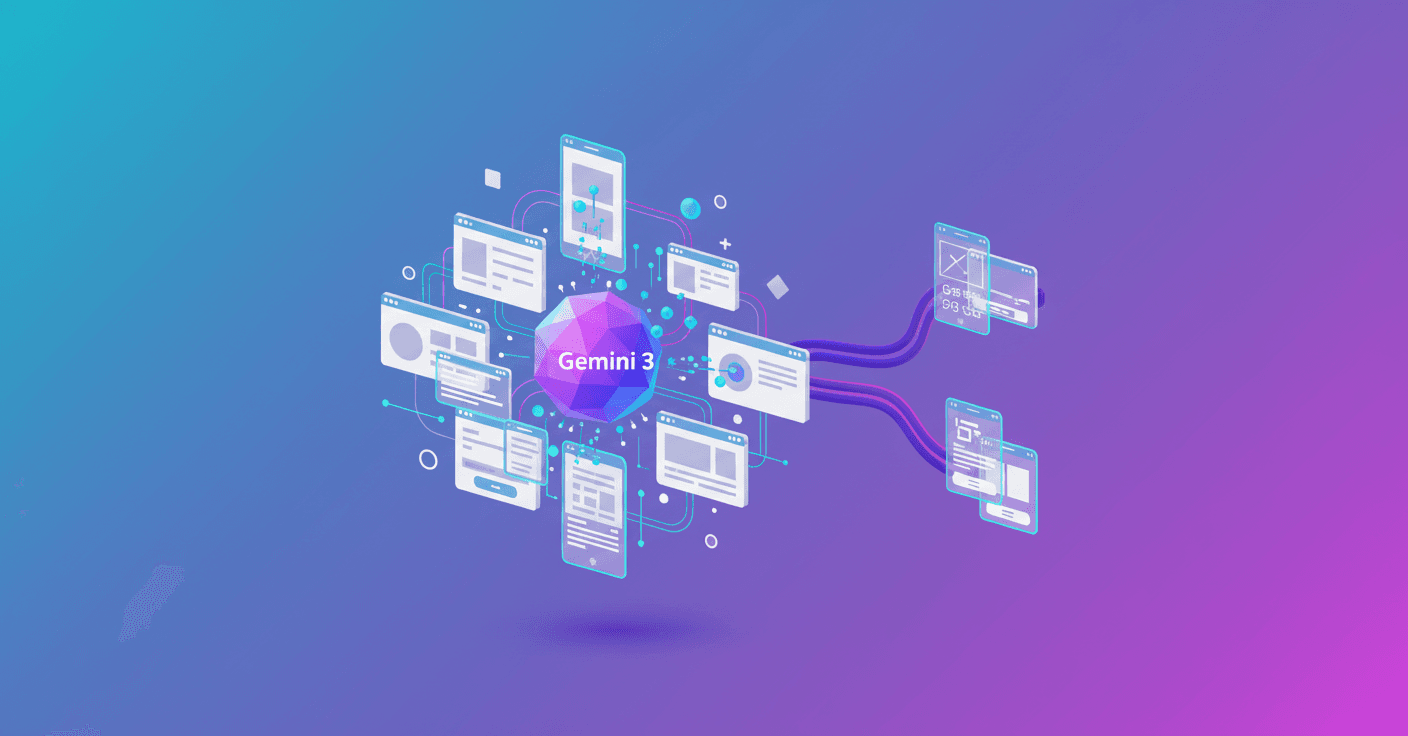
Today Google brings the power of Gemini 3 into Stitch, its experimental AI-powered design tool. What does that mean for you as a designer, developer, or founder? Basically higher-quality UI generated automatically and a new way to turn static screens into interactive prototypes.
What Gemini 3 Brings to Stitch
Gemini 3 in Stitch improves automatic interface generation: better visual composition, greater consistency across screens, and outputs that are closer to designs ready to iterate. In addition, Google launches the "Prototypes" feature, which lets you "stitch" different screens onto the canvas to create a functional prototype.
This is no longer just a sketch: you can design interactions, transitions, and complete user flows without leaving the canvas. Can you imagine going from idea to a navigable flow in minutes? That's the promise.
Important: the feature is experimental. There will be improvements and Google asks for feedback to refine the system.
How you can use it in your workflow (technical but practical guide)
-
- Idea rápida: describe the app or use case in natural language. For example:
Create onboarding for a finance app with 3 screens: welcome, data entry, summary.
- Idea rápida: describe the app or use case in natural language. For example:
-
- Generate screens: Stitch uses Gemini 3 to produce several UI versions you can iterate on. It helps to specify visual tone, platform (iOS/Android/web) and key components.
-
- With "Prototypes" you connect screens: define buttons, links and transitions and test the full flow on the canvas.
-
- Iterate: tweak copy, colors and behavior; regenerate screens or adjust interactions manually.
Technically, what makes Gemini 3 useful here is its ability to understand multimodal instructions (text and layout) and produce coherent interface outputs. Practically, think of it as an engine that maps intentions (your prompt) to visual compositions, respecting hierarchies and design patterns.
Example prompt for better results
Use clear, structured prompts. Example:
Design a product screen for a mobile store. Platform: Android. Style: minimal, primary colors blue and white. Elements: product image, title, price, buy button, reviews.
Add variations: asking for alternatives or accessible versions helps you evaluate options quickly.
Limitations, considerations and best practices
- Quality vs. control: AI speeds creative exploration, but outputs usually need adjustment for accessibility, design consistency and alignment with design systems.
- Responsiveness: check how the design scales across resolutions; generation may be optimized for a default size.
- Handoff to development: Stitch is experimental; confirm whether you can export assets or code directly depending on the platform integrations available.
- Privacy and data: avoid uploading sensitive information in prompts. Read the usage policies before sharing real data or critical intellectual property.
What this means for teams and founders
For small teams and rapid prototypers, this combo reduces the time between idea and product test. For designers, it's an exploration tool that boosts creativity, not a replacement. For developers, it's a quick way to receive UI artifacts that can then be turned into real components.
Want a practical example? I’ve used generation tools to prototype a recipe app: creating onboarding variants saved me hours and let me test which flow retained users better in early tests.
How to start today
You can try Stitch and the Gemini 3 integration at stitch.withgoogle.com. Explore, generate screens and enable the "Prototypes" feature to connect your flow.
If you work in product, try: 1) define a small use case, 2) generate several versions with different prompts, 3) assemble a navigable prototype and 4) test with real users to validate assumptions.
The key is to use AI to explore fast and then apply human judgement to polish and validate.