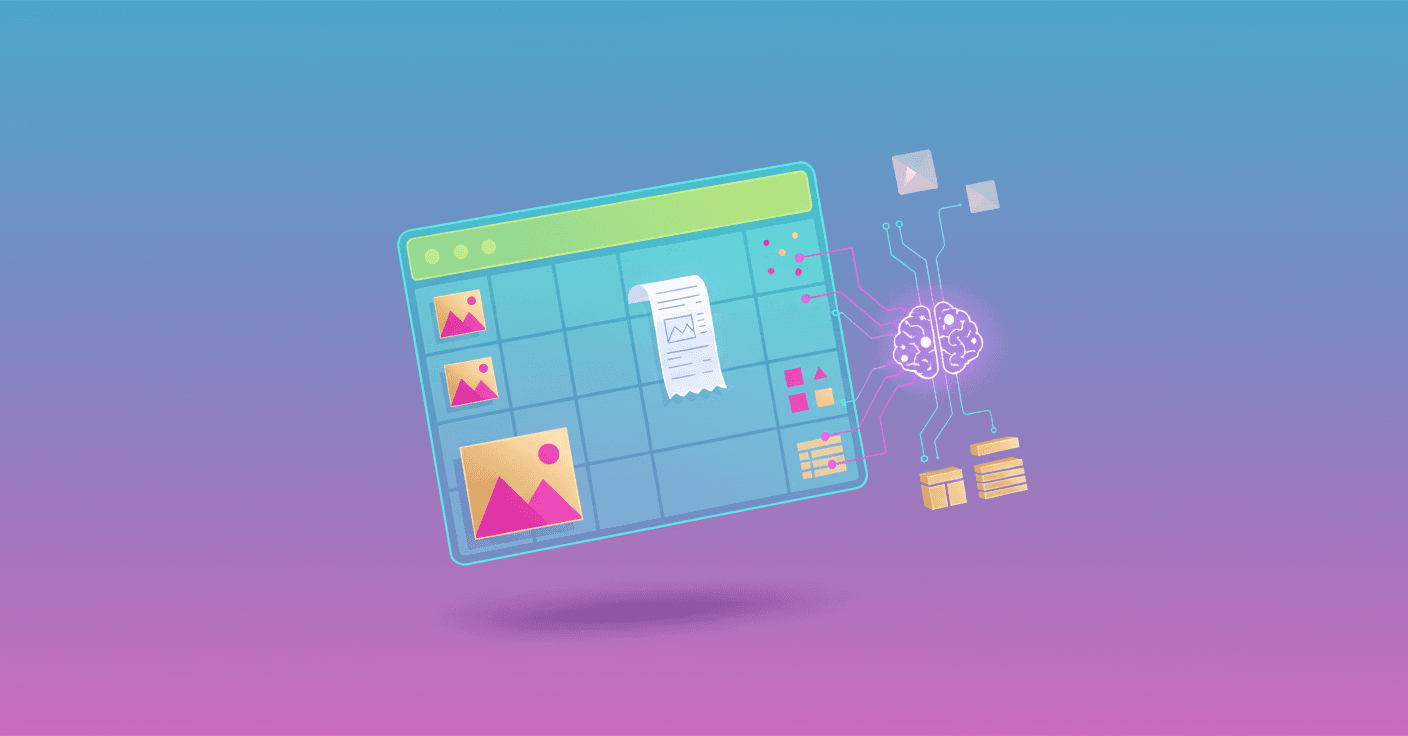
Hugging Face released a major update to AI Sheets: the tool now works with images inside the spreadsheet, letting you extract text, transform and generate images without writing code. Can you imagine turning a pile of photos or receipts into a table ready for analysis with a few clicks? (huggingface.co)
What the update brings
The idea is simple and powerful: combine text columns and image columns in the same workflow. With this version you can:
- Describe and categorize photos automatically, generate captions and tags.
- Extract structured data from documents and receipts: merchant name, date, totals and more.
- Generate images from text and edit existing images directly in the sheet.
- Iterate with prompts, correct outputs manually and use the thumbs-up gesture to teach the model.
These features rely on the thousands of open models available via Inference Providers, so you can try different trade-offs between speed and accuracy. (huggingface.co)
How it works in practice
You upload a folder of photos or drag images into the app. Each image appears as a cell; on any column you can apply an "AI action": extract text, ask the image a question, detect objects, colorize or edit. Results arrive as new columns you can clean, transform and export.
Think of this as a spreadsheet that also has computer vision and image-generation functions integrated into the interface you already know. (huggingface.co)
A prompt and a model per action
Each action is defined by a prompt and a model. You can use prebuilt templates or write custom prompts like Extract the merchant name, date, total amount, and expense category from this receipt and get a CSV or Parquet ready for your workflow.
Practical examples
-
Travel receipts: you upload photos, run the extraction template and get a table with merchant, date, total and category. You manually fix mistakes and regenerate the remaining rows to improve consistency. (huggingface.co)
-
Social calendar: you have titles and descriptions in a sheet, create an image column with the prompt
Generate an appetizing food photo for: {{title}}. Style: bright, overhead shot, natural lighting.and then apply a second action to tweak background or style. The whole calendar lives in one place.
Models and accuracy
AI Sheets uses vision and multimodal models. The team example shows Qwen/Qwen2.5-VL-7B-Instruct as the default model and compares results with a larger reasoning model Qwen/Qwen3-VL-235B-A22B-Reasoning for complex cases. The comparison reveals subtle differences like a missing temperature or ingredient, which reminds you that choosing the right model matters depending on the task. (huggingface.co)
Getting started and exporting
You can try AI Sheets without installing anything in the public Space or clone the repo and run it locally. The project is open source and on GitHub if you want to review the code or deploy it to your infrastructure. If you run it locally or at scale, the recommendation is to use the PRO options for higher inference quotas. (huggingface.co)
Why this matters for you
Because it lowers the barrier between images and actionable data. If you work with inventories, invoices, historical archives, catalogs or social content, going from image to table is no longer a manual, fragmented process. Ask yourself: do you want to keep labeling by hand or turn that work into a reproducible pipeline?
If you want to try it, start by uploading a small set of photos and play with prompts to see how quality changes with model and instructions. The learning curve is about prompts, not infrastructure.